How to Host QuickBooks Desktop in the Cloud
Your lease is up, your server is four years old, and three staff are working hybrid. Replacing that server with another on-premise box is a $6,000–$10,000 decision that also keeps every IT headache squarely on your desk. QuickBooks hosting sidesteps that choice: your existing Desktop license runs on someone else’s infrastructure, and every person on your team logs in through a remote desktop session from wherever they happen to be.
Here is exactly how to evaluate and set up that move.
What QuickBooks Hosting Actually Means
Intuit defines hosting as storing, accessing, and running QuickBooks software and data files on a service provider’s servers rather than on your own PC. Users connect through the internet to the provider’s systems to access and run the software and their data files. Nothing changes about how QuickBooks looks or behaves — you are simply running it on a different machine, one you do not own or maintain.
Intuit authorizes third-party providers to host QuickBooks Desktop Pro, QuickBooks Desktop Premier, QuickBooks Accountant Desktop, and QuickBooks Desktop Enterprise Solutions. That authorization list Intuit covers a range of companies, but Intuit explicitly states that appearing on it does not mean it endorses, certifies, sponsors, or guarantees any provider’s services. You still have to evaluate the provider on its own merits.
Decide What You Actually Need Before You Call Anyone
Before you request a trial or demo from any host, answer these three questions:
1. Which QuickBooks version are you running? Enterprise behaves differently from Premier in multi-user mode. Enterprise supports up to 30 simultaneous users inside a single company file; Premier tops out at 5. Know your user count now and what it will realistically be in 18 months.
2. How many company files do you manage? If you are a firm running 40 client files, storage allocation and per-file performance matter more than raw CPU speed. Some providers charge per company file above a threshold.
3. What add-ons or integrations does your workflow depend on? Payroll, third-party document management, practice management software — these all need to either run in the same hosted environment or connect reliably over the internet. Map your stack before you move.
The Migration Process, Step by Step
Step 1 — Audit Your Current Setup
Open QuickBooks Desktop and go to Help → Product Information. Note your exact version, release number, and license key. You will hand these to your hosting provider. Also run a Verify Data (Utilities menu) on every company file before migration. Do not move a file with known data integrity issues — fix it locally first.
Step 2 — Choose and Provision Your Host
Select a provider, initiate a trial, and give them your license details. A managed host handles provisioning — they install your licensed copy of QuickBooks on their servers and configure the environment. You do not need to ship or upload a software installer; you provide proof of license.
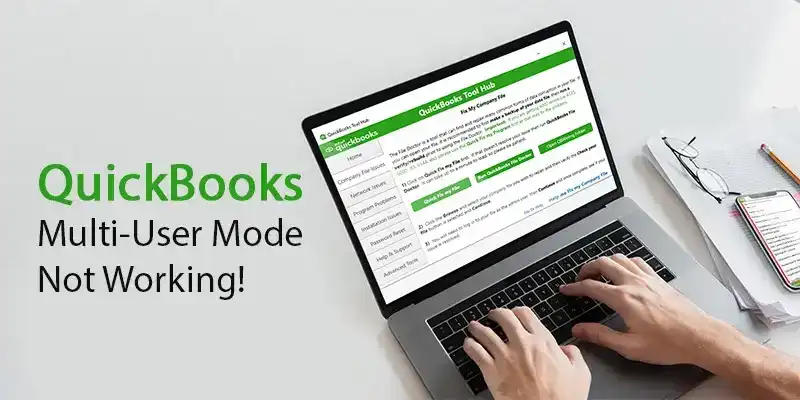
For multi-user access, Intuit’s own guidance says to use the QuickBooks Database Server Manager and enable Multi-User Access on the host machine. A managed hosting provider does this on their end as part of setup — you should confirm it is enabled before you migrate any live files.
Step 3 — Transfer Your Company Files
Most providers give you a secure file transfer portal or a mapped network drive accessible via your remote desktop session. Upload your .QBW files there. For large Enterprise files (often 500 MB+), expect the transfer to take time proportional to your upload speed. Schedule this after hours.
Once uploaded, open the file inside the hosted environment, run Verify Data again, and compare the balance sheet totals to what you had locally. If anything looks off, do not go live — contact support before users touch the file.
Step 4 — Set Up User Access and Permissions
In QuickBooks, go to Company → Set Up Users and Passwords → Set Up Users. Add each team member with the correct role — External Accountant, Full Access, or custom. Each person gets a remote desktop credential from the host and a QuickBooks user credential inside the application. Keep these separate in your password manager.
Step 5 — Test Before You Cut Over
Have two or three staff log in simultaneously. Run a payroll calculation, pull an aged receivables report, and open a secondary company file at the same time. If performance degrades unacceptably under that load, you need more RAM allocated on the hosted instance — raise this before you cancel your local setup.
What You Stop Worrying About
Once you are on a managed host, the provider handles backups, security patches, and QuickBooks updates. For a 10-person firm, that alone eliminates the need for a dedicated IT contractor for QuickBooks-related issues. Your staff get the same environment whether they are in the office, at a client site, or working from home — no VPN configuration, no drive mapping drama.
You can also onboard a seasonal hire in minutes. Spin up a new remote desktop credential, add them as a QuickBooks user, done. No laptop imaging, no license juggling on physical machines.
How Sagenext Helps
Sagenext hosts QuickBooks Desktop Pro, Premier, Enterprise, and Accountant editions on fully managed infrastructure. The firm handles provisioning, automated backups, security, and software updates — you hand over your license details and company files, and they build the environment.
Multi-user remote desktop access is standard, so your whole team works in the same live file regardless of location. Sagenext also hosts the broader stack that accounting firms run — Drake, Lacerte, ProSeries, Sage 50, Sage 100, and others — so if you need more than just QuickBooks in the cloud, everything can live in one managed environment rather than spread across multiple vendors.
A free trial is available with no credit card required, which makes it practical to test performance and multi-user behavior before committing.
For a side-by-side look at how cloud hosting compares to keeping QuickBooks on your own server, see Top AI Tools For QuickBooks Desktop.
Key Takeaways
- Hosted QuickBooks runs your existing Desktop license on a provider’s servers — the application experience is identical, only the hardware changes.
- Intuit authorizes specific providers to host Pro, Premier, Accountant, and Enterprise editions; that authorization is not an endorsement, so vet each provider independently.
- Before migrating, run Verify Data on every company file locally and resolve any corruption first.
- Multi-user access requires the QuickBooks Database Server Manager and Multi-User Access enabled on the hosted machine — confirm your provider handles this during setup.
- Test simultaneous logins and report performance under real load before you cut over from your local environment.
- A fully managed host eliminates server maintenance, backup management, and most IT support calls for QuickBooks-related issues — significant time savings for firms of any size.
Frequently Asked Questions
Can I keep my existing QuickBooks Desktop license when I move to a hosted environment?
Yes. You provide your existing license key to the hosting provider, and they install that licensed copy on their servers. You do not purchase a new license just because you changed where the software runs. Confirm with your provider that your specific version — Pro, Premier, or Enterprise — is supported before starting the transfer.
How many users can access a hosted QuickBooks file at the same time?
It depends on your QuickBooks edition. QuickBooks Desktop Premier supports up to 5 simultaneous users in a single company file. QuickBooks Enterprise supports up to 30. The hosting environment itself can handle concurrent remote desktop sessions, but the per-file user limits are set by your QuickBooks license, not by the host.
Is hosted QuickBooks secure enough for client financial data?
A managed host applies security patches, manages access controls, and runs automated backups — typically more consistently than a small firm maintains its own server. Evaluate each provider’s specific security practices, but the architecture itself is not inherently less secure than an on-premise server. Ask any candidate provider about their backup frequency, retention period, and access logging.
What happens to my data if I stop using a hosting provider?
You own your company files. Any reputable host will give you a copy of your .QBW files on termination. Confirm this in the service agreement before you sign. Ask specifically how files are delivered, in what format, and within what timeframe after cancellation.
Do I need a fast internet connection to run hosted QuickBooks?
You need a stable connection more than a fast one. Remote desktop sessions transmit screen changes rather than raw data, so a reliable 10–25 Mbps connection per user is generally sufficient for normal QuickBooks work. Unreliable connections cause more performance problems than low bandwidth. Test your office and any remote locations before committing.
 Popular Posts