
 QuickBooks · Dec 22nd 2025 · 7 Min read
Master QuickBooks Time Login: The Ultimate Employee and Manager Guide
Payroll and billable hour management should never be a burden. However, if you have recently switched to QuickBooks Time (formerly TSheets), you are probably aware of the enormous relief it brings to your everyday tasks, provided you can get through the login process without any problems.
We will cover the QuickBooks Time login process from scratch in this material. Imagine you are an employee going to the job site to clock in, or a manager running reports from your computer. Either way, your dashboard will be readily available to you.
What is the Current Name of QuickBooks Time?
Before moving on with the “how-to,” we want to eliminate a source of confusion. Lots of people still look for “TSheets.” Even so, in 2021, Intuit brought the platform a new identity. The name has been changed to QuickBooks Time. Apart from the interface, which has been redesigned to make the user experience within the Intuit ecosystem smoother, everything else remains the same; tracking time against tasks and locations is still the top choice for US businesses.
How to Intuit QuickBooks Time Login (Desktop & Web) Guide
Admins and staff working in a corporate environment will get the most feature-rich experience by using the QuickBooks Time login desktop. Here is how you get in:
Step. 1: Visit the Official Portal: Navigate to the Intuit QuickBooks Time login page.
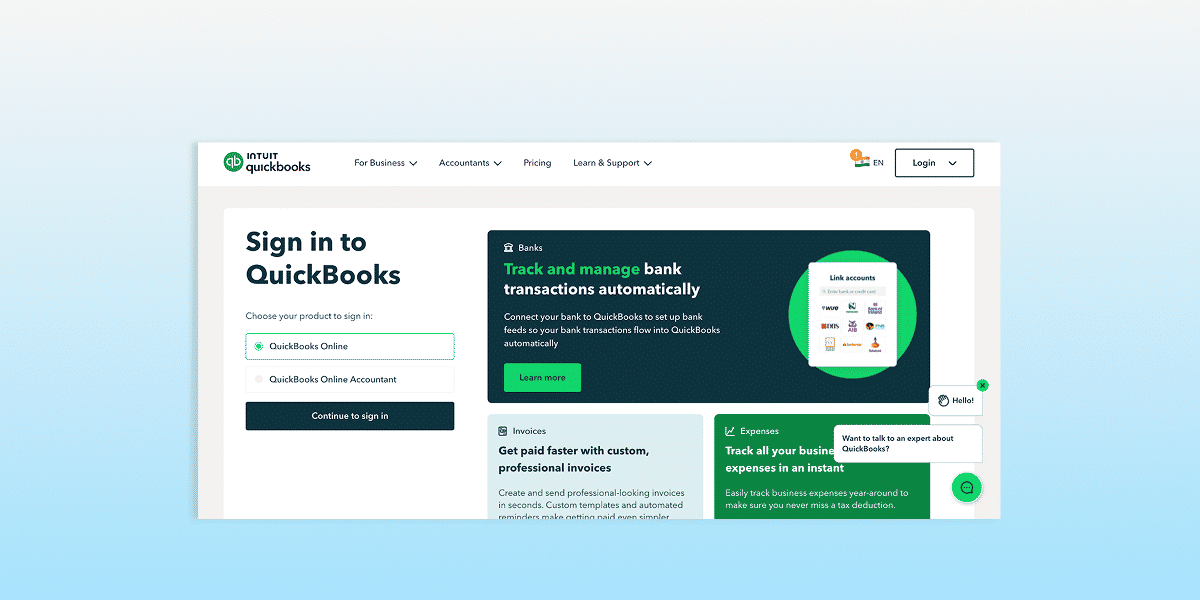
Step. 2: Enter Your Credentials: Use your email or user ID associated with your Intuit account.
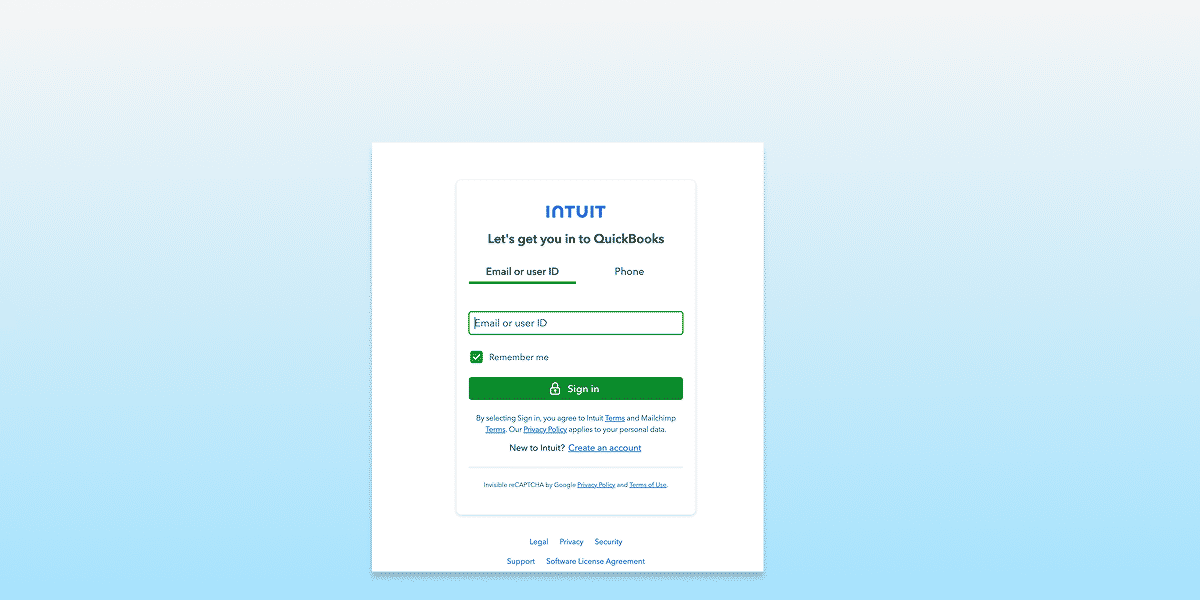
Step. 3: Authentication: If you have Two-Factor Authentication (2FA) enabled (which we highly recommend for security), enter the code sent to your phone or email.
Step. 4: Dashboard Access: Once authenticated, you’ll land on your main dashboard, where you can manage timesheets, view schedules, and run payroll reports.
What is QuickBooks Time, Previously Known As?
Here’s a quick recap before creating the account. The majority of search engine inquiries about this software continue to be “TSheets,” but it is important to note that the company changed its name in 2021. The platform is now branded as Intuit’s QuickBooks Time. Meanwhile, the user interface has been modified to align with the Intuit ecosystem; however, the central feature of time tracking by projects and locations remains the standard for businesses in the USA.
Logging into QuickBooks Time from Desktop and Web
Usually, through a desktop, the login process is an excellent opportunity for office staff and administrators. You can find the way here:
- Open a web browser and enter the official portal address. Go to the Intuit QuickBooks Time login site.
- Provide your Personal Details: Enter the email or user ID associated with your Intuit account.
- Confirm your Identity: If you have 2FA (Two-Factor Authentication) enabled, which we strongly suggest for security reasons, enter the code sent to your email or phone.
- Dashboard Access: You will be directed to your dashboard, where you can manage timesheets, check schedules, and generate payroll reports after you are confirmed.
To get the most out of payroll automation and accounting, consider QuickBooks Enterprise Hosting if your company handles large amounts of data or requires multi-user access from different locations. It allows you to combine your time tracking with cloud-hosted accounting software for a more integrated experience.
QuickBooks Time Mobile Login for Employees
The majority of today’s workforce is off-site. Whether you are a contractor in the field or a consultant visiting the client’s office, the app will be convenient if you have a QuickBooks Time login.
Unlock Mobile Access Steps:
- Get the Application: Use the Apple App Store and Google Play Store to find the QuickBooks Time app.
- Launch and Sign In: Once you tap the icon, enter your QuickBooks Time login employee information.
- Turn on Location Services: Since most employers also use geofencing, make sure your phone’s GPS is working if you want to start your clock as soon as you arrive at the work location.
- Clock In: You want to press “Clock In.” The good thing is, you don’t have to log out if you want to change your customer or job during the shift.
Troubleshooting Common QuickBooks Time Login Issues
Technology is terrific, and then, suddenly, it isn’t. In case an error message is displayed in front of you, please don’t be alarmed. Below are some fixes for the most frequent QuickBooks Time login problems:
1. Forgot Password
We all forget sometimes, don’t we? The “I forgot my user ID or password” link is on the sign-in page. Intuit will send a password reset link to the email address you have registered with them. If it takes more than 2 minutes, check your spam folder first.
2. Browser Cache Problems
If the browser keeps reloading or freezing, it may be “stuck.” To refresh the browser, clear your cache and cookies. Another thing you can do is open the login page via an Incognito/Private window.
3. Account Locked
For security reasons, Intuit will temporarily lock your account after a certain number of unsuccessful login attempts. You should wait for about fifteen to thirty minutes before making another attempt, or you may ask your company’s QuickBooks administrator to unlock your account.
4. Integration Sync Errors
If you are using QuickBooks Hosting Providers to run your accounting, ensure your hosting environment is active. Sometimes, a disruption in the cloud server can prevent the time-tracking data from syncing correctly with your company file.
Why Are Modern Businesses Favoring Cloud-Based Time Tracking Systems?
The move to QuickBooks Cloud Hosting and integrated time-tracking solutions is not merely a fashionable act; it is a significant productivity enhancer. Through the use of an Intuit QuickBooks Time login
Precision: The practice of “estimating” one’s work hours at the week’s end has been completely eradicated.
Conformity: Maintain digital footprints that are extremely helpful during DCAA or FLSA audits and are easily verifiable and authentic.
Effortless Payroll: Transferring hours directly into QuickBooks is a great time-saver, as it eliminates manual data entry for hours.
Final Thoughts
A strong understanding of your QuickBooks Time login can lead to a perfectly planned workday. It is so great that you have a mobile app for fieldwork and a desktop portal for reporting, so every bit of the labour gets done. If your firm is expanding rapidly and different setups are becoming insufficient, I suggest getting specialized QuickBooks Hosting solutions that provide secure, high-performance cloud environments where your financial KPIs and time tracking can be managed in one place.
Frequently Asked Questions (FAQs)
How do I log in to QuickBooks Time?
You can choose either the web at tsheets.intuit.com or the QuickBooks Time mobile app to log in. Your user id and password will be necessary. If the company has set up the Single Sign-On (SSO), the user is redirected to the company’s internal portal.
What is QuickBooks Time called now?
QuickBooks Time previously went by the name TSheets. Intuit has purchased the company and rebranded it to better align with its financial tools, such as QuickBooks Online and Payroll.
Can I use QuickBooks Time on my desktop?
Of course. There are no windows or Mac desktop apps that are “downloadable, but the desktop experience for QuickBooks Time login is fully compatible with all major web browsers (Chrome, Firefox, Safari, and Edge).



