 Adobe · Sep 3rd 2026 · 7 Min read
Adobe Cloud Login: The Complete Professional’s Guide
You open your laptop Monday morning, have a client deliverable due by noon, and Adobe Creative Cloud refuses to let you in. Whether it’s a forgotten password, a corporate SSO redirect that loops, or a ‘We don’t have an account with this email address’ error, the problem isn’t technical complexity—it’s that most people never learned how the Adobe login system actually works. This guide fixes that.
Know Your Account Type Before You Type Anything
Adobe’s sign-in system routes you differently depending on whether you hold a personal Adobe ID or a company-managed account. Entering the wrong type wastes time and sometimes locks you out entirely.
Personal Adobe ID: Created with your own email. You own it, you control the password, and Adobe stores your credentials directly. Freelancers and solo practitioners typically fall here.
Company or School Account (Enterprise/Federated ID): Your employer purchased the license. You authenticate through your organization’s identity provider—Microsoft Entra, Okta, Google Workspace—not through Adobe’s password system. Adobe calls this SSO. When you type your work email, Adobe detects the federated domain and redirects your browser to your company’s login page automatically.
Adobe explicitly distinguishes between these two account types during sign-in. If your email can be tied to both a personal and a company account, Adobe will ask you to choose. Pick wrong and you’ll access the wrong storage, wrong apps, and wrong billing.
Profiles add another layer. Adobe defines a profile as a set of entitlements tied to an account, with dedicated storage that is independent from other profiles. One email address can sit under multiple accounts, each with multiple profiles. Before you assume something is broken, confirm you’ve selected the correct account-and-profile combination.
How to Sign In: Three Methods Covered
Desktop App (Daily Driver)
This is how most professionals log in every day.
- Open the Creative Cloud desktop app—the multicolored icon in your system tray or menu bar.
- Click Sign In.
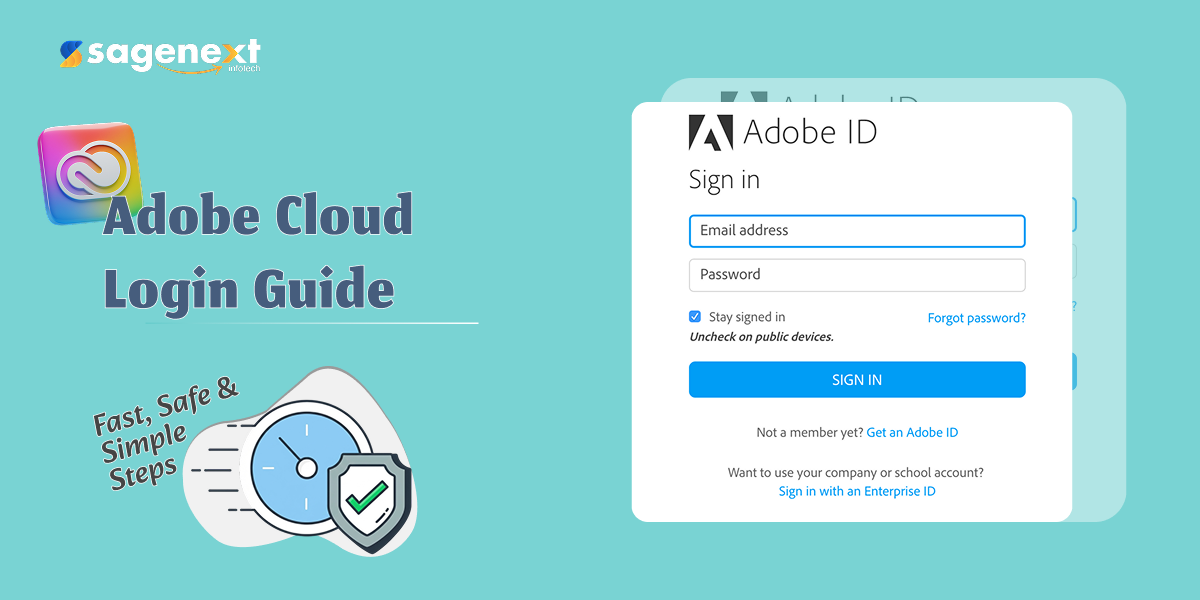
- Enter your email address and click Continue.
- If you’re on a personal account, enter your password. If you’re on a company account, your browser opens your organization’s SSO login page—use your corporate credentials there.
- If two-step verification is enabled, Adobe sends a code to your registered email address or phone number. Enter it to proceed.
- Once authenticated, the app displays your licensed software library. Install, update, and launch from here.
Browser Sign-In (Subscription Management and Downloads)
Use this when you need to manage your plan, download standalone installers, or update payment details.
- Go to the official Adobe website https://www.adobe.com/ .
- Click Sign In at the top-right corner.
- Authenticate the same way you would in the desktop app—password, SSO redirect, or passkey.
- Navigate to Apps for downloads or Account for subscription and billing settings.
Passkey Sign-In (No Password Required)
Adobe supports passwordless authentication via passkeys. If you’ve set one up on your device, you can sign in to Adobe apps and services without entering a password at all—your device’s biometric or PIN handles the authentication. This is the most phishing-resistant option available. Worth setting up if you manage a team account and want to reduce credential-sharing risk.
Enterprise Admin Console: What IT Managers Need
If you administer Adobe licenses for a firm or department, the Admin Console at adminconsole.adobe.com is where real control lives. You authenticate with your admin credentials—password, two-step verification, or your organization’s SSO depending on how your account is provisioned.
From the console you can:
- Assign and revoke product licenses to named users
- Configure identity types (Adobe ID, Enterprise ID, Federated ID)
- Set up SSO with your identity provider
- Monitor storage quotas per profile
- Pull usage reports to identify unused licenses
For firms with more than a handful of users, SSO configuration done here is what prevents the Monday-morning login chaos described above.
Fixing the Five Most Common Login Failures
“We don’t have an account with this email address” Adobe shows this message when the email entered doesn’t match any account. Use the Get help signing in flow and choose Find your account—Adobe can search by registered phone number if you’ve forgotten which email you used.
Wrong password, every time Adobe passwords are case-sensitive. Before resetting, confirm Caps Lock is off and you’re typing the exact combination of upper and lowercase letters. One wrong character returns a failure with no useful hint.
SSO redirect loop You type your work email, get redirected to your company’s login page, authenticate successfully, and land back at the Adobe sign-in screen—over and over. This usually means your IT team hasn’t fully configured the SAML or OIDC settings in the Admin Console, or your browser has a conflicting cookie from a personal Adobe session. Clear Adobe cookies and try an incognito window. If it persists, your IT admin needs to review the federation configuration.
Two-step verification code never arrives Check that Adobe has your current phone number or email address on file. If you’ve changed carriers or email providers, the code goes to the old contact. Log in via a trusted device first, then update your verification contact in account settings.
Signed in but wrong apps appear You’re authenticated to the wrong profile. Sign out, then sign back in and explicitly choose the correct account and profile. Profile-level storage is separate, so this also explains why you can’t find your files.
How Sagenext Helps
For CPA firms and accounting practices, Adobe is often one piece of a larger software stack that includes QuickBooks, Lacerte, ProSeries, Drake, Sage 50, and other tools. Managing desktop installations, updates, and access control for even a five-person team burns hours each month. hosts accounting and tax software on managed cloud infrastructure. Your team accesses QuickBooks Desktop, ProSeries, UltraTax, and similar tools through a single remote desktop session—provisioned, updated, and secured by Sagenext. That means no individual workstation license headaches, no update failures on deadline day, and multi-user access from wherever your staff works.
If you’re already dealing with Adobe login friction on top of accounting software maintenance, consolidating your critical practice tools to a managed environment removes one more category of fire-drill. Sagenext offers a free trial with no credit card required, so you can test the workflow before committing.
Key Takeaways
- Adobe distinguishes between personal accounts and company or school accounts at sign-in—choosing the wrong one gives you the wrong apps and storage.
- A single email address can link to multiple accounts, each with multiple profiles; always confirm the correct account-and-profile combination.
- Two-step verification sends a code to your registered email or phone—keep that contact information current or you’ll be locked out.
- Passkeys let you sign in without a password entirely; they’re the strongest anti-phishing option Adobe currently offers.
- The “wrong email” error and the case-sensitive password requirement together account for the majority of failed logins—check both before resetting anything.
- Enterprise admins manage SSO, license assignments, and storage from the Admin Console; misconfigured federation is the most common cause of redirect loops.
Frequently Asked Questions
What is the difference between a personal Adobe account and a company account?
A personal Adobe ID is created and owned by you, using your own email and password. A company or school account is provisioned by your employer and authenticates through your organization’s SSO system rather than Adobe’s password infrastructure. Adobe flags the distinction during sign-in. If your email is associated with both account types, Adobe asks you to choose—select the wrong one and you’ll access different storage and a different app entitlement set.
How does Adobe two-step verification work during login?
When two-step verification is enabled on your account, Adobe sends a verification code to your registered email address or phone number immediately after you enter your password. You must enter that code to complete sign-in. If the code doesn’t arrive, confirm Adobe has your current contact details on file. Outdated phone numbers or old email addresses are the most frequent reason codes go missing.
Can I sign in to Adobe without a password?
Yes. Adobe supports passkeys, which let you authenticate using your device’s biometric (fingerprint or face recognition) or PIN instead of a password. Once you set up a passkey on a device, that device handles Adobe authentication without you typing credentials. It’s the most secure sign-in method Adobe currently supports and eliminates the risk of a compromised password affecting your account.
Why does Adobe say it doesn’t recognize my email address?
Adobe displays the message “We don’t have an account with this email address” when the exact email entered doesn’t match any account in its system. You may have registered under a different address. Use the Get help signing in option and select Find your account—Adobe can locate accounts by registered phone number if you can’t recall the original email.
Why do I see different apps after logging in on a different device?
Adobe organizes entitlements and storage by profile, and each profile is independent. If you’re authenticated to a different profile than usual—because you picked a different account or profile at sign-in—your app licenses and files will look different. Sign out, sign back in, and at each prompt confirm you’re selecting the correct account and the correct profile within that account. 5 Benefits Of Hosting Drake Tax Software