 User-Guide · Dec 26th 2025 · 7 Min read
How to Convert PDF to Word: The Ultimate Guide for 2026
Everyone of us has experienced it. A critical document like a contract, resume, or report that arrives in PDF format, and you find a typo. Or you may feel like editing a couple of paragraphs. It is only natural to think that you should be able to edit right by clicking on the text, but it simply doesn’t work.
PDFs are great for sharing documents as they look exactly the same on any device; however, they become a real pain if you want to make changes. That is why having the skill of converting PDF to Word comes very handy.
Will it be a student who is editing a paper, a business owner rewriting a contract or just a person who wants to fill out a form that doesn’t allow typing? Converting that unmodifiable PDF to an editable Word document is very simple. This article will take you through the most efficient ways of converting PDF to Word without any cost by utilizing tools that you most probably already have or can get access to online in a matter of seconds.
Reasons to Convert PDF to Word
Let’s not get ahead of ourselves with the step “how” and first think about the “why.” Even though PDFs are safe and look professional, Microsoft Word documents (.doc or .docx) are more suitable for editing. So when you switch from PDF to Word, you can:
- Edit Text Without Limits: You can correct typos, update dates, or completely rewrite sections, and that without the tedious use of text boxes.
- Formatting with no Restrictions: You can change fonts, margins, and layouts, which are usually fixed in a PDF.
- Repurpose the Material: You can take out the tables, pictures, or information for the new presentations or reports.
Do you crave an edit now? It is high time we discussed the great tools for the task.
Best 10 PDF to Word Conversion Tools (With Instructions)
It took us many hours to execute several methods in order to determine the most trustworthy, precise, and secure methods that can be used to convert a PDF file to a Word document. We have gathered the most efficient, easy-to-use, and convenient solutions that you can apply, whether you are at work or at home, and you most probably already have some of them installed on your PC. Besides that, we also provide you with a list of quick online tools that require no installation or registration.
1. Using Microsoft Word for PDF to Word (Best for Desktop Users)
Did you know you don’t even need special software to do this? If you have Microsoft Word 2013 or later, you already have a built-in PDF to Word converter. This is often the safest method because you don’t have to upload your file to the internet.
Step. 1 Open Microsoft Word.
Step. 2 Go to the File menu and click Open.
Step. 3 Locate the PDF file you want to convert on your computer.
Step. 4 Select the PDF and click Open.
Word will show a pop-up message telling you it’s going to convert your PDF to an editable Word document. Click OK.
Result: Word will open the file. You might need to click “Enable Editing” at the top. The formatting might shift slightly, but the text will be fully editable.
2. Adobe Online Converter for PDF to Word (Free Web Version)
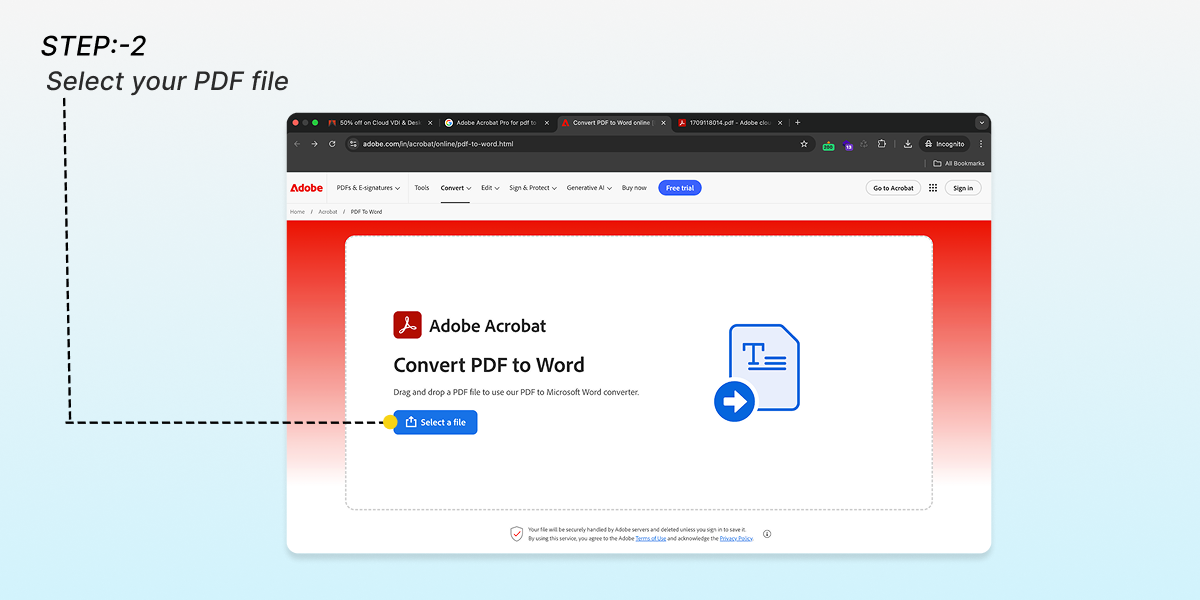
Even if you don’t have the paid Acrobat software, Adobe offers a free online tool to convert PDF to Word free. It is highly reliable because it uses Adobe’s powerful engine.
Step. 1: Visit the Adobe Acrobat PDF to Word Converter page
Step. 2: Select your PDF file
Step. 3: Choose Microsoft Word as the output format
Step. 4: Download the Word file

Read Also: How to Open PDF Files on Android: An Advanced Comprehensive Guide
3. Using Adobe Acrobat (The Professional Choice)
Adobe invented the PDF, so it makes sense they have one of the best tools to convert PDF to Word. While the full version is paid, it offers the best formatting retention, especially for complex documents with lots of images.
Step. 1: Open your PDF file in Adobe Acrobat Pro.
Step. 2: In the right-hand pane, click on the Export PDF tool.
Step. 3: Choose Microsoft Word as your export format.
Step. 4: Select Word Document.
Step. 5: Click Export.
Step. 6: Name your new file and save it to your desired location.
Also Read: How To Remove Password From PDF Easily 2026
4. iLovePDF PDF to Word (Best Free Online Tool)
If you need a quick, free PDF to Word converter and don’t want to install software, iLovePDF is a fan favourite. It is fast, intuitive, and works directly in your browser.
Step. 1: Visit the iLovePDF website
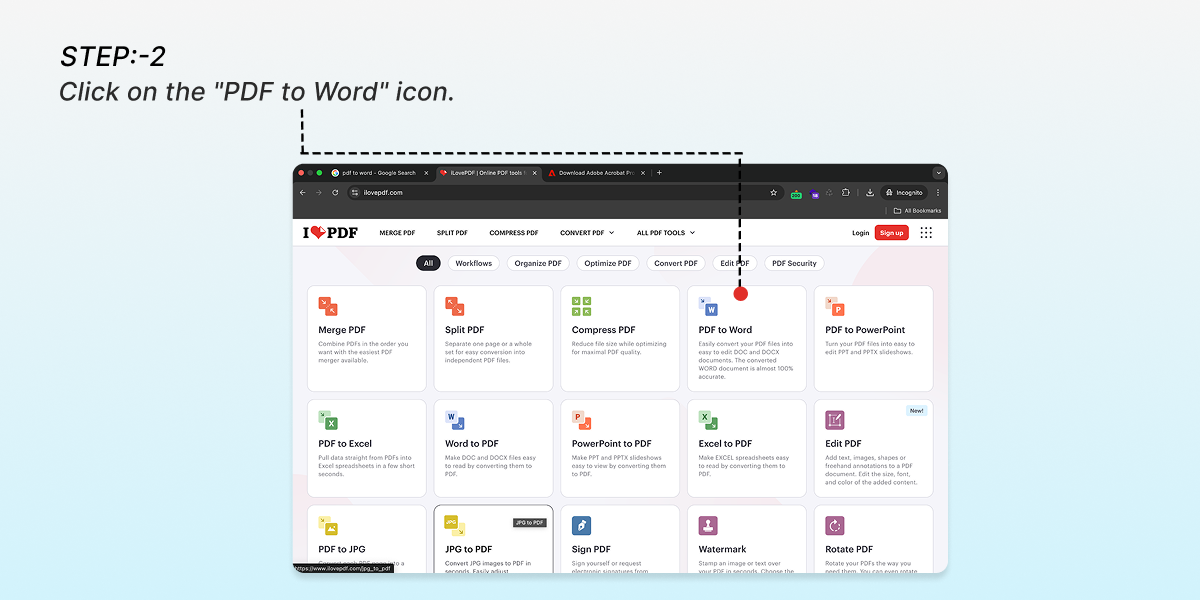
Step. 2: Click on the “PDF to Word” icon.
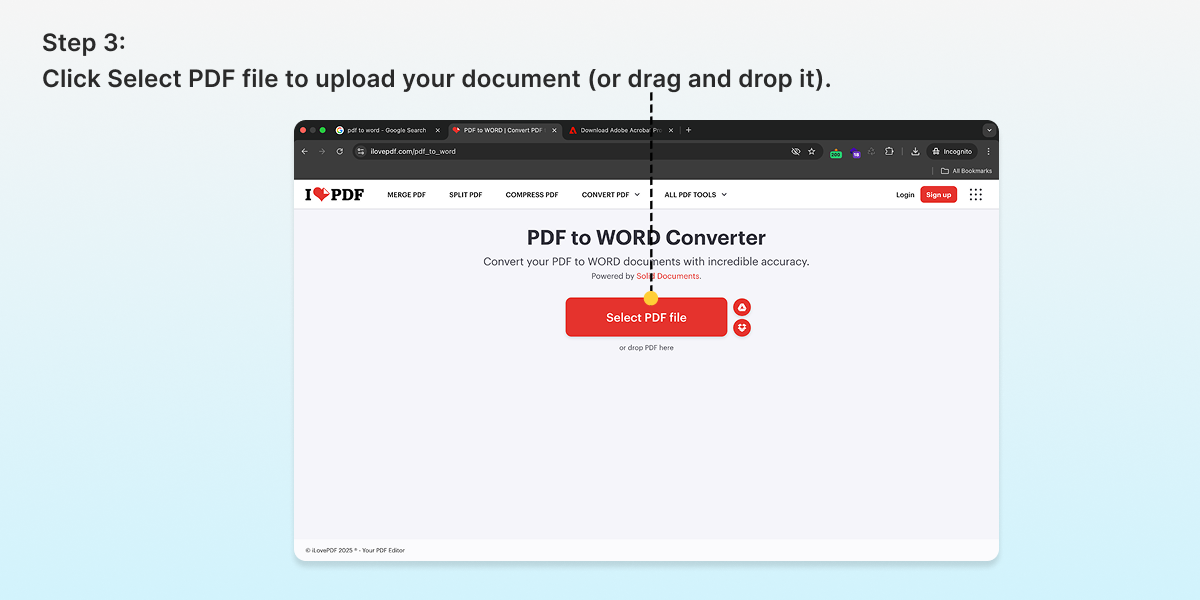
Step. 3: Click Select PDF file to upload your document (or drag and drop it).
Step. 4: Hit the big red Convert to WORD button.
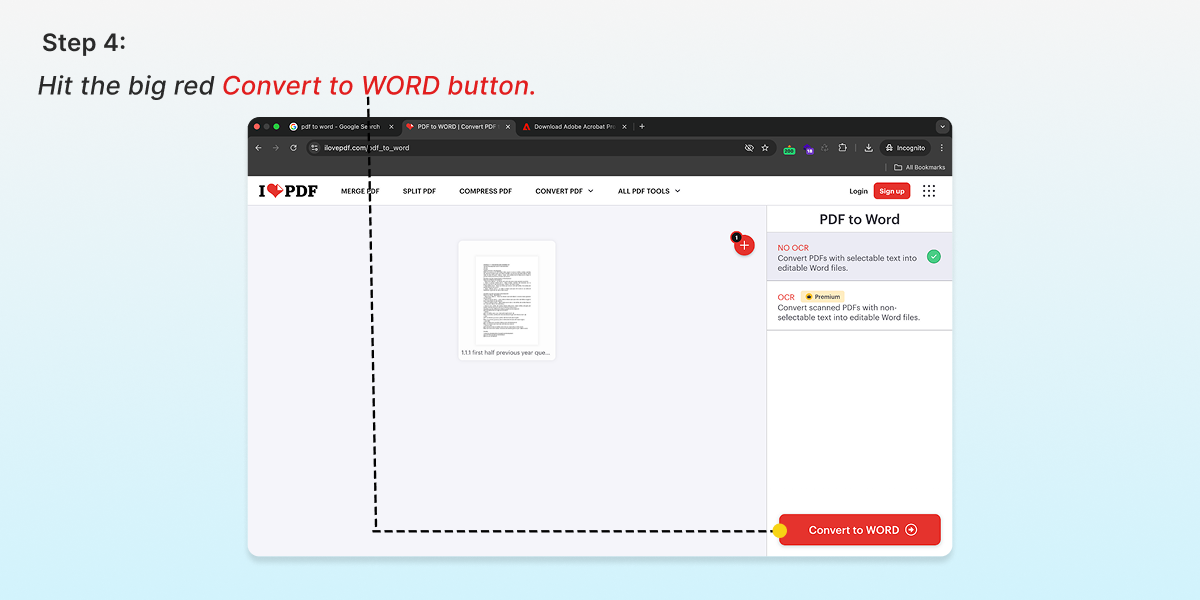
Step. 5: Once done, click Download WORD to save your editable file.
5. Smallpdf PDF to Word
Smallpdf is another excellent cloud-based tool known for its clean interface and strong privacy policies. It is great for quickly figuring out how to convert a PDF to Word without headaches.
Step. 1: Go to the Smallpdf website.
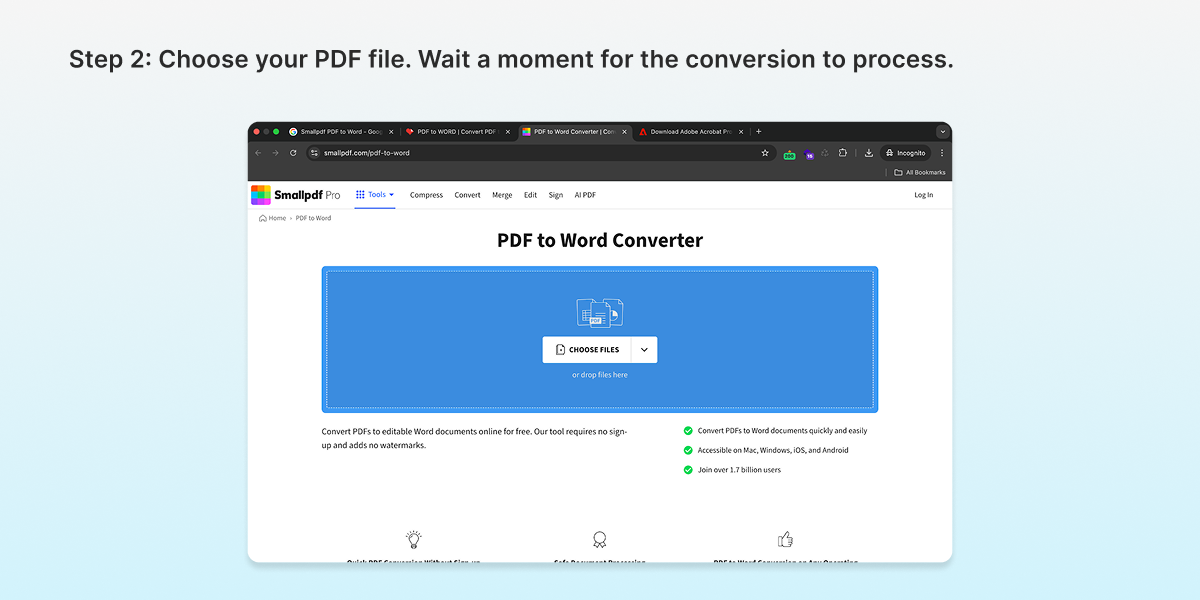
Step. 2: Choose your PDF file. Wait a moment for the conversion to process.
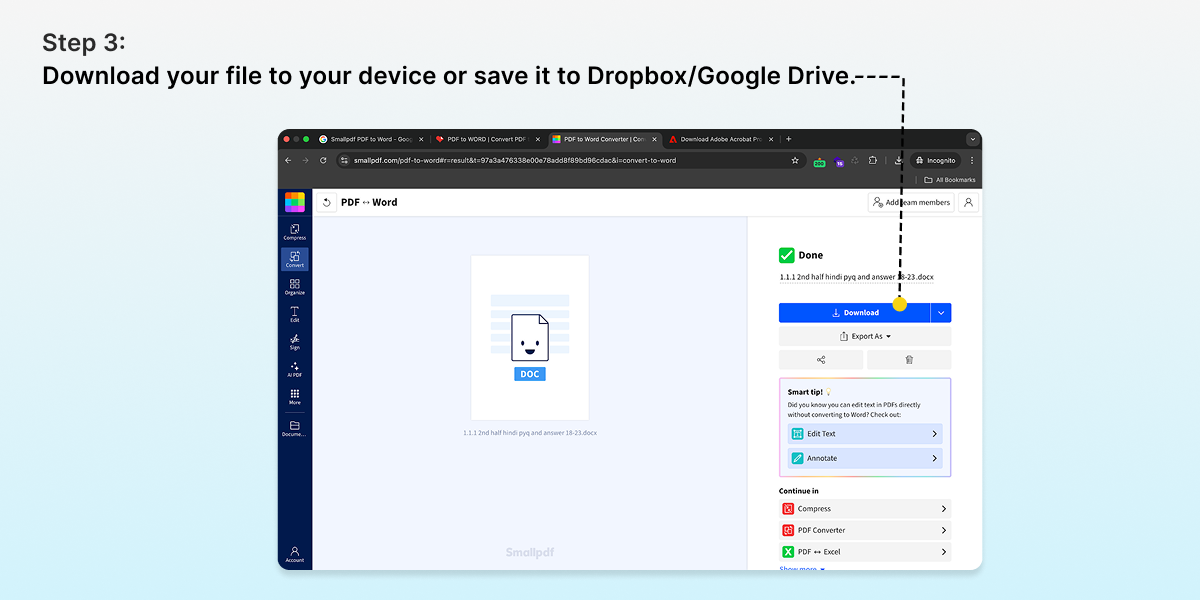
Step. 3: Download your file to your device or save it to Dropbox/Google Drive.
6. PDFgear (Best Free Desktop Software)
If you want a free PDF to Word converter that runs offline but doesn’t cost a dime, PDFgear is a hidden gem. It is completely free with no watermarks.
Step. 1: Download and open the PDFgear application.
Step. 2: Navigate to the PDF to Word tool in the main menu.
Step. 3: Click Add Files and select your PDF.
Step. 4: Choose your destination folder.
Step. 5: Click Convert. The software processes it locally, keeping your data off the cloud.
7. Google Docs (The “No-Install” Hack)
This is a clever trick for how to convert PDF to Word if you use Google Drive. It is actually using Google Docs as a middleman.
Step. 1: Upload your PDF file to your Google Drive.
Step. 2: Right-click the uploaded PDF file.
Step. 3: Select Open with > Google Docs.
Step. 4: Google will convert the image text into editable text (formatting might get a bit messy here).
Step. 5: Once open, go to File > Download > Microsoft Word (.docx).
8. PDF24 Tools
PDF24 is a robust collection of PDF tools. It’s 100% free and unlimited, which is rare. It is perfect if you have multiple files to batch process.
Step. 1: Visit the PDF24 Tools website.
Step. 2: Select the PDF to Word tile.
Step. 3: Drag and drop your files into the box.
Step. 4: Click Convert.
Step. 5: Download your job once processed. You can even email it to yourself.
9. FreeConvert.com
This site handles large files well and supports a wide variety of formats beyond just documents.
Step. 1: Go to FreeConvert.com.
Step. 2: Click Choose Files (supports URL, Dropbox, and Drive too).
Step. 3: Ensure the output format is set to WORD.
Step. 4: Click Convert.
Download the resulting file. Note: The free version has a file size limit, but it is generous enough for most documents.
10. Nitro PDF to Word Converter
Nitro offers a “Pro” experience. They have a free online converter that sends the file to your email. It is known for keeping the original layout very intact.
Step. 1: Go to the Nitro PDF to Word online page.
Step. 2: Select your file.
Step. 3: Enter your email address (this is required to receive the file).
Step. 4: Click Convert Now.
Step. 5: Check your inbox for the download link.
Which Method Should You Choose?
When there are a lot of ways to change a PDF file to a Word document, how can you know which one fits your needs?
- Security/Privacy Focus: Go for Microsoft Word or PDFgear. Your file remains on your computer in these, which is mandatory if you deal with very sensitive data like legal or financial.
- Speed Focus: Go for iLovePDF or Smallpdf. These are instant, and you don’t have to download them.
- Formatting Accuracy Focus: Go for Adobe Acrobat. When your paper has complicated tables or pictures, Adobe makes sure that they don’t get moved around while changing.
- Cost Focus: Go for Google Docs or PDF24. These are absolutely free and unlimited.
Common Issues When You Convert PDF to Word
Very often, the conversion is not spot on. Here are some mistakes you can meet and their solutions:
1. Strange Line Breaks:
On occasions, the text is converted in such a way that hard returns appear at the end of every single line. To solve it, one can apply the “Find and Replace” feature in Word and get rid of the unnecessary paragraph breaks.
2. Non-Editable Images:
If the PDF you have come from a paper that was simply scanned, it is basically a photo. Thus, if you want to alter it, a converter with OCR (Optical Character Recognition) should be used by you. Such a converter can be found in Adobe Acrobat and the paid editions of Smallpdf.
3. Disorderly Tables:
Tables are incredibly hard to change. If your table does not appear correctly in Word, generally, it is more efficient to extract the data and put it in a brand new table within Excel or Word rather than fixing the layout by hand.
Conclusion
Mastering the skill of converting PDF to Word can be considered as having digital superpowers, as it can spare you from hours of retype. You may decide to use the native features of Microsoft Word, the professional precision of Adobe, or a free online application for converting PDF to Word; essentially, you are now equipped with the instruments for handling your documents.
There is absolutely no reason for you to keep staring at that inactive PDF all the time. Just take a tool from the above list, perform the conversion, and resume your work!